Posts

Essentials of Windows
Image
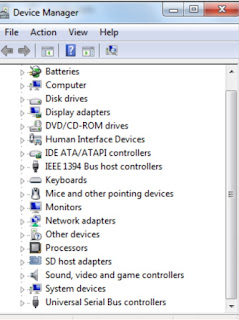
Device Manager To examine the proper installation of Hardware and other connected devices. To open: Start>>Run (Winkey + R) type devmgmt.msc and press Enter. Here you can manage the following: Uninstall Disable Update driver Properties Scan for hardware changes Roll Back Backup It saves a copy of selected files and folder in a selected destination. It is alyaws good practice to keep backup of your data. To Open Backup tools Start>>Programs>Accessories>System tools>Back Up. Clean Disc This is very useful command to get rid of any unnecessary temporary files that are occupying spaces in the hard disk. To Open Run > %temp% > ok contains temporary files. Press Ctrl+A and Shift + Del. Run > temp > ok and delete. (This contains the Window temporary folder) Run > cookies > ok and delete. (This contains visited websites temporary files) Run > prefetch > ok and delete. Start> Program> Accessories> System t...

Computer Virus and Antivirus

Image
  Computer Virus and Antivirus The computer Virus is the sets of some such codes which are organized to create disorder in the computer system. A computer virus is a computer program that can copy itself and infect a computer without permission or knowledge of user. Computer virus is a type of software. The computer virus is designed to corrupt or stole the data of PC and stops the PC to run. Sources of PC virus The PC viruses are not like human virus which can transfer through air. The big source of computer virus is the Internet. Most of Viruses creators are connected with the internet and they do transfer their product in internet directly or indirectly. If any user browse the site than his/her pc might be infected by virus. Other sources of virus are data transfer media like floppy disk, pen drive etc. If we use virus infected media with out virus scanning than our pc can be infected by the virus. Symptoms of virus infected PC Simply when we get sick, we can'...

BIOS- CMOS

Image
BIOS Short for Basic Input/Output System, BIOS is a chip located on all computer motherboards that contains instructions and setup for how your system should boot and how it operates. BIOS is chip level program, using which we can configure the basic input and output system of our computer. The BIOS may be different for different computers depending on the manufacturer. CMOS CMOS is short for Complementary Metal-Oxide Semiconductor. CMOS is an on-board semiconductor chip powered by a CMOS battery inside computers that stores information such as system time and system settings for your computer. How to enter the BIOS or SMOS setup? You can enter the BIOS or CMOS by pressing any one of the for keys (F1, F2, F10, Del) during the boot. BIOS operations In BIOS we can view the overall device configurations, change system date and time, configure the boot device priority, set supervisor password and even load optimal defaults to all devices. Boot Device Priority The boot de...

File System

Image
File System A file system is a method for storing and organizing computer files and the data they contain to make it easy to find and access them. File system may use a data storage device such as hard disk or CD-ROM and involve maintaining the physical location of the files. File systems usually consist of files separated into groups called directories. Directories can contain files or additional directories. The common file system used in Windows Operating System is FAT and NTFS. Short for File Allocation Table, FAT is a method used by Microsoft operating systems to keep track of the contents of a disk; the table is a chart of numbers that correspond to cluster addresses on the hard drive. FAT12 : The oldest type of File Allocation Table that uses 12-bit binary system. A hard disk formatted using FAT12 can use a maximum of apporoximately 16,736,256 volume size and today is no longer used. FAT16 : FAT utilizing a 16-bit binary system. Commonly found with Windows 3.x thro...

FDISK

Image
  FDISK The fdisk command is an external command that is used to configure the fixed disk. the FDISK program allows you to delete, create and partition different portions of the hard drive. It is also used to show and create the active partition of the hard drive. FDISK is also used in Windows 95, Windows 98, Windows ME operating systems. Running FDISK To run the FDISK, we need a Windows 98 Bootable Disk or a bootable Floppy Disk. Steps : Insert the Windows 98 Bootable Disc into the CD-ROM and restart the computer. In the keyboard, press Del, or F2 or F10 to start the BIOS or CMOS setup. In the Boot Device Priority, make sure that the first boot device is assigned as CD-ROM. Shift the command line mode to the CD-ROM drive, and open the Win98 folder from the CD-ROM. (cd Win98) Type fdisk. Press Y and Press Enter.

Hard Disk Partition

Image
  Hard Disk Partition Hard disk drive partitioning is the creation of logic divisions upon a hard disk that allows one to apply operating system-specific logical formatting. Partitioning a hard disk drive defines specific areas (the partitions) within the disk. A partition may constitute an entire logical drive or it may form part of a large virtual drive which could span over several partitions and hard disks. Partitions must be formatted as file system which are understood by an operating system, enabling the writing, reading and copying of files. Partitioning allows the creation of several file systems on one hard disk. This has many benefits, including: Allowing for dual boot setups, which lets users have more than one operating system on a computer. Protecting or isolating files, so that, if an operating system stops working, it can be simply reinstalled with far less chances of deleting user files and settings. Raising overall computer performance. Types of Partiti...

Disk operating System (DOS)

Image
  DOS (Disk operating System) Commands The DOS commands are the instructions or commands that we use in Disk Operating System for Communications between the users and the system. The commands also serve as an interface between the users and the computers. We can use DOS commands either within the system or outside system that is using an external disk. To start a DOS command in Windows, Click on Start>Accessories>Command Prompt OR Click on Start>Run> Type "command" or "cmd" and click ok Basically there are 2 types of DOS commands: Internal Commands External Commands Internal Commands Internal commands are those commands that can be used within the system, that means when the computer boot or starts. The Internal Commands are used for carrying out certain operations within the system like viewing directories, folders, files, and creating, editing and deleting files, folders etc. Some of the internal commands are: cd\  : This command...